Last checked: 12 October 2026. Review method: official documentation review by Number Customer Care Editorial Desk. No hands-on printer testing was performed for this update.
Start with two small checks: can the printer produce a report from its own controls, and can your computer print a simple document? Those results help separate a printer problem from a connection, queue, application or quality-setting problem. Reinstalling drivers for every symptom wastes time and can remove a working setup.
1. Stop sending duplicate jobs and check the device
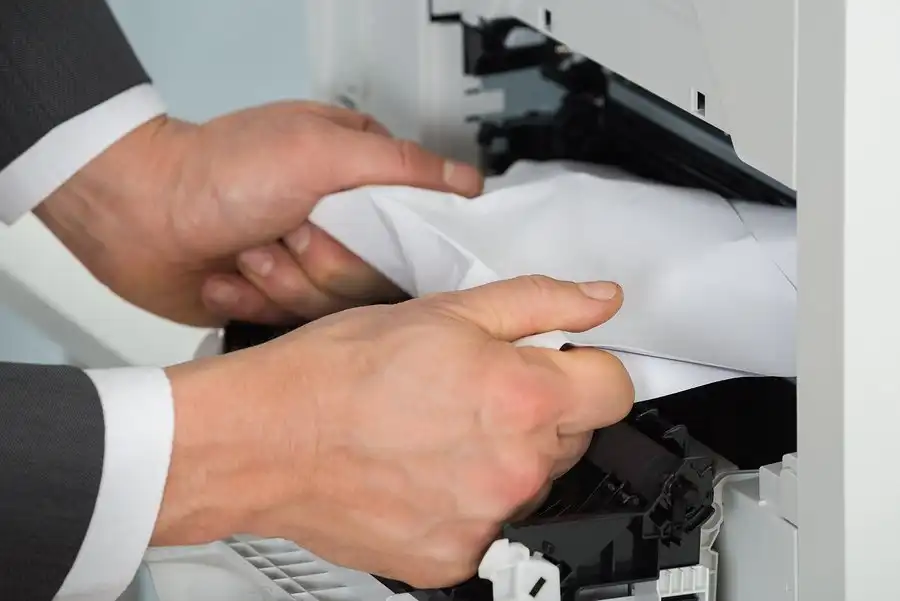
Keep your original files. Check the printer display for a specific message, make sure the appropriate paper is loaded, and confirm that the user-access covers are closed. Follow the model manual for a jam or supply problem; do not open internal covers or touch hot laser-printer components.
If a normal restart is appropriate, use the model’s instructions. Do not interrupt a firmware update. On shared devices, check with the administrator before restarting so another person’s print, scan or fax operation is not disrupted.
2. Use the result to choose a branch
| Observation | Most useful next check |
|---|---|
| A built-in printer report fails or shows the same defects | The device, supplies, paper or its documented maintenance. |
| Local report is good, but no computer jobs arrive | Connection and selected print queue. |
| One computer fails while another works | The failing computer’s queue or supported software. |
| Only one file or app fails | That file, app and its print choices. |
| Small text jobs work, but large images are slow | File complexity, quality setting and connection performance. |
This is a diagnostic order, not a guarantee that one observation identifies a single cause. Note what changed and test one adjustment at a time.
3. If offline or not found, check the connection
For USB, verify the cable is suitable and securely connected. When troubleshooting, compare a direct connection or another suitable cable/port if available. For network printing, read the model’s network report or display to verify the intended network and current address.
Internet access alone does not prove the computer can reach a printer. Guest networks, office access rules and print servers may control the permitted path. Ask IT about a managed printer instead of lowering firewall/router security or inventing a static address.
In Windows 11, open Settings > Bluetooth & devices > Printers & scanners and select the actual device. Microsoft also provides the printer troubleshooter in Get Help. On current macOS, use System Settings > Printers & Scanners and the supported method for the model. Use official OS and manufacturer guidance rather than instructions for Windows Vista or old macOS Network Utility.
4. If jobs are stuck, clear only what you intend to discard
In Windows 11, select the printer and open its print queue. Identify the job blocking progress and cancel jobs you do not need to preserve. Cancelled work must be sent again from the original file. Do not click Print repeatedly while the queue is blocked.
If normal cancellation fails, follow Microsoft’s queue troubleshooting or ask the administrator. Advanced service and spool-folder changes can affect queues beyond the one job; this guide does not direct you to delete system folders or registry entries.
5. If one application or file fails
Try a short document from another app, then a different file from the failing app. Check the selected printer, paper size, page range and whether output was directed to a PDF/file instead of the physical device. If an ordinary OS test prints but one app still fails, focus on that application rather than replacing hardware.
Microsoft’s app-specific guide explains this comparison. Save documents before any app repair or reinstall, and follow the software maker’s instructions.
6. If printing is slow or the output looks wrong
Slow: compare one text page with the complex file. Choose a suitable quality level and the correct paper type. High-resolution images can take longer to process. A permitted USB/Ethernet comparison on a supported printer can help distinguish network delay from file processing. Do not assume the device needs more RAM or a new cartridge.
Faded, streaked or blurry: compare the device’s own test page with computer output. If both look poor, check paper and supplies and use only the model’s user maintenance. If the local page looks good, compare application scaling, image resolution and quality settings. Inkjet cleaning may consume ink, so do not repeat cleaning cycles indefinitely or apply an inkjet printhead routine to a laser printer.
7. Software changes are later, targeted steps
Obtain software only from the manufacturer’s model page or the OS’s supported route. Confirm model, OS version and processor compatibility. Before removing a queue, save its presets, paper sizes and finishing settings. A full macOS printing-system reset has wider effects than replacing one queue and should be considered only through Apple’s specific last-resort guidance.
Stop and use official support for a recurring service message, electrical damage or a documented operation requiring a technician. Record the model, exact message, connection and test results so support can focus on the right branch.
Number Customer Care is an independent information publisher. We are not an official printer support service and do not provide remote repairs, a paid helpline or guaranteed fixes.
Official sources
- Microsoft: Printer connections and printing problems
- Microsoft: Stuck print jobs
- Microsoft: Slow printing
- Microsoft: Faded, blurry or streaked printing
- Microsoft: Printing fails only in one application
- Apple: Update printer software when printing fails
- Apple: Solve printing problems on Mac — reset is last resort