Last checked: 12 October 2026. Review method: official documentation review by Number Customer Care Editorial Desk; this is not a claim of testing on every printer.
Install Lexmark printer software from Lexmark’s official model page after checking your operating system and connection. Some supported printers can use a built-in IPP or AirPrint path for printing; additional features may need the software recommended for the exact model. A driver intended for another Lexmark printer is not a reliable substitute.
Before downloading: collect four details
- The complete model from the printer label, including any suffix.
- The OS version and processor type of the computer that will print, not the phone used to download the file.
- USB, Ethernet or Wi-Fi connection. A model may need an optional wireless adapter or may not support wireless printing.
- The functions you need: printing, scanning, fax software or finishing options. Basic printing does not establish that all those functions are installed.
On a managed workplace computer, obtain the approved installer or queue from IT. If the existing installation works, note its settings before making changes. A new driver is not a cure for a jam or a printer that is not connected to the network.
1. Use the official model and OS filters
- Open Lexmark Drivers & downloads and search for the exact device model.
- Review the selected OS and OS version. Correct them if the website detected the browsing device rather than the target computer.
- Read the package description, supported products, release information and installation notes. Choose the recommended package or supported alternative for that combination.
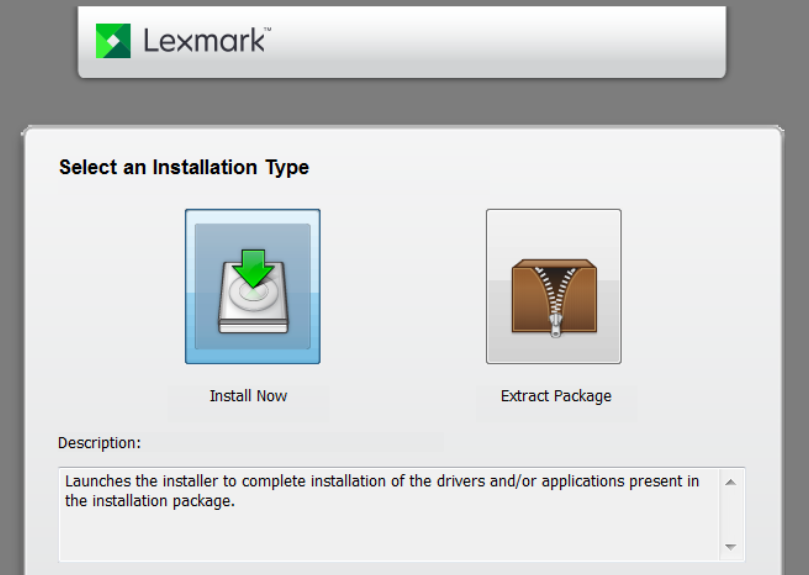
- Download through the official page and follow the installer. Connect USB at the stage the model instructions specify; network installation requires the computer to reach the printer.
Lexmark’s installation page describes model search, the recommended package and the possibility of Microsoft IPP Class Driver or AirPrint depending on the OS. Its references to print, scan and fax drivers do not mean a print-only device acquires scanning or fax hardware.
2. Decide between basic printing and full features
| Need | Decision |
|---|---|
| Ordinary printing on a supported modern OS | Check whether the model supports the OS’s built-in printing method. |
| Extra trays, finishing, scanning or device-specific settings | Check the recommended model software and supported feature list. |
| Several office Lexmark laser printers | IT may use the Universal Print Driver, after checking its supported models, OS and print language. |
| No matching current download | Ask Lexmark about compatibility; do not force an old package or use a “driver updater” website. |
The name “Universal Print Driver” does not mean every Lexmark inkjet, laser and operating system is supported. Use Lexmark’s compatibility table before selecting it. For macOS, use AirPrint only when the model supports it; missing optional controls may require a different supported software path.
3. If the installer cannot find the printer
For USB, confirm the cable is a data cable and the printer is powered and ready. For a network device, read its current address from the model’s network report or display and confirm it is reachable from the computer. Discovery failure and software incompatibility are separate problems.
If other computers can print but this one cannot, compare the selected printer queue and driver. If no computer can reach it, troubleshoot the printer’s connection first using our Lexmark network guide. Do not repeatedly reinstall a driver while the printer is on the wrong network.
4. Handle OS policy or installation errors safely
Write down the exact error and package name. A blocked installation may concern permissions, processor architecture, a mismatched OS or a printing-security policy. Windows protected print mode uses Microsoft’s modern printing path and has compatibility requirements; it should not be disabled casually to make an older package install. On a managed PC, ask IT for an approved compatible route.
Lexmark’s current download page also discusses a Print Support Application for supported Windows 11 environments. Follow the exact model’s current offer and requirements instead of installing an unrelated app by name.
Do not disable security software, bypass signature warnings or delete registry entries. Firmware is separate from a computer driver: do not flash firmware merely because an installation failed. Model-specific firmware instructions, release notes and interruption risks need separate review.
5. Validate and preserve what already works
Print one small document, then test the additional functions you need. Check paper size, duplex and tray selection. Before removing an old queue, record its presets and cancel only jobs you intend to discard; the source documents must be available to send again. Keep the old working setup until the replacement prints correctly when practical.
Official help and safety
Number Customer Care is an independent information publisher, not Lexmark’s support service. We do not provide a repair helpline, remote access or account support. Open the manufacturer’s official support website yourself; do not share passwords, verification codes or payment details with a number advertised as our support service.